
Going online and accepting trips
4 min readFor Drivers
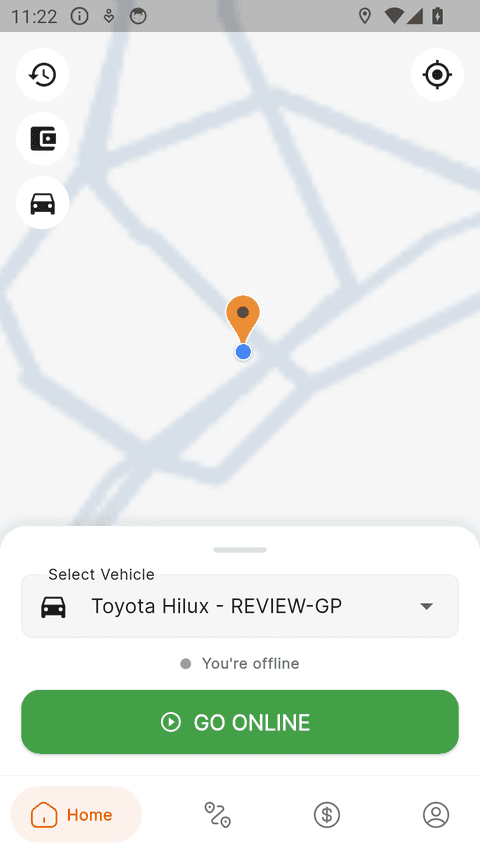
Once you and your vehicle are approved, open the app, select your vehicle, and tap GO ONLINE. While online, trips booked near you for your vehicle class are offered to you.
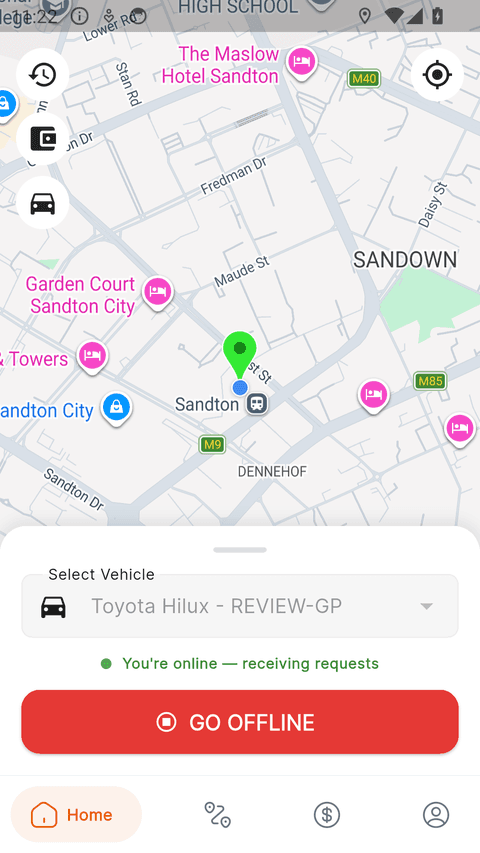
You will see a green banner confirming you are online and receiving requests. Keep the app open with location on — trips are matched to your live position.
When a trip comes in
- You get a request with the pickup point and fare — you have a few minutes to accept, so you have time to look, but the first driver to accept gets the trip.
- Drive to the pickup, load the goods, and start the trip.
- Follow the route to the drop-off. You can chat or call the customer from the trip screen.
- When you arrive at the drop-off point the delivery completes — the app detects your arrival automatically, or you can complete it with the button.
Why am I not receiving requests?
- Make sure you are online (green banner showing).
- Check your wallet balance — if it is negative, requests are paused until you settle it (see the Earnings & wallet guide).
- Trips are matched by vehicle class: a customer booking a Large Truck will not reach a Mini Bakkie.
- Location must be enabled and the phone connected to the internet.
Still need help? Contact us.